
City St George's email is offered through Office 365 for which you must first have an IT account. We also provides a secure and pervasive wireless network available all across campus.

Access City St George's email
You can access your email via any web browser or via your mobile / handheld device.
Outlook Web App
- Open any normal web browser
- Open the Outlook Web App
- Enter your email address and your account password.
Mobile / handheld device
Please click on the link to view the instructions:
What is Office 365?
Office 365 provides you with free online access to software such as Word, Excel and OneNote from any web browser.
See our software section to find out more.
What is my City St George's email address?
For Clerkenwell and Moorgate Campus students
Your City St George's email address is provided at student registration and is displayed to you during:
If you are unsure of your email address then please contact the IT Service Desk
Learn more on how to prevent phishing and spam emails.
For Tooting Campus students check here.
Wireless networking for students, staff and visitors from other institutions
Eduroam Wi-Fi is easy to configure and connect to and allows you to access the internet from your mobile device or personal laptop.
The simplest and most secure way to connect to eduroam Wi-Fi is to download the eduroam CAT (Configuration Assistance Tool). This ensures a secure and smooth set up that will work most effectively.
We additionally provide guidance for manual eduroam setup at the bottom of this page. But this method is less secure than using the Eduroam CAT tool.
If after following the instructions you are still having issues, please follow the steps for resetting your Eduroam certificate, as if you have used Eduroam before, at another institution, this may need to be done.
Resetting your Eduroam certificate
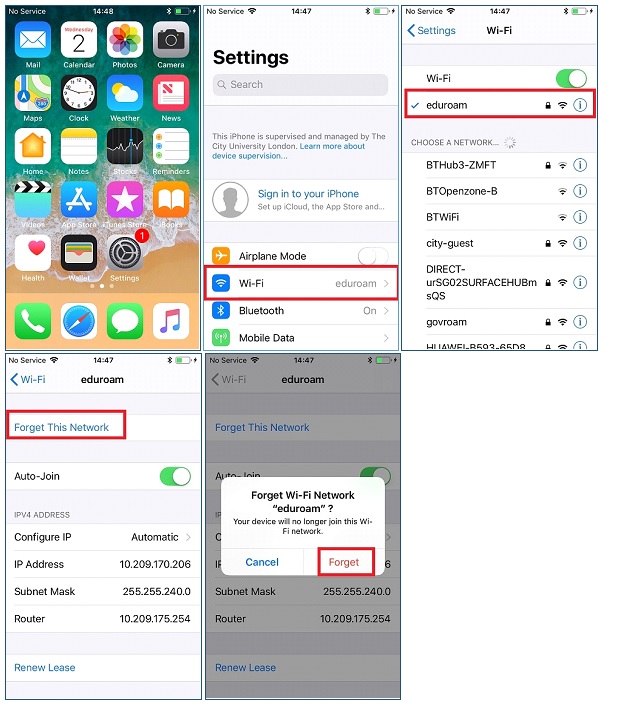
If you have connected to Eduroam before but are experiencing issues, you may need to reset your certificate by forgetting Eduroam and then re-connecting using the connection instructions. Below are instructions for forgetting Eduroam.
Apple iOS forget Eduroam Wi-Fi
- Navigate to the settings of your device
- Select ‘Wi-Fi’
- Select the Eduroam Wi-Fi
- Select ‘Forget this network’
- Select ‘Forget’ again
The Eduroam credentials have now been removed.
Windows 10 forget Eduroam Wi-Fi
- Select ‘Start’ > ‘Setting’ > ‘Network and Internet’
- Select ‘Wi-Fi’ on the left hand side
- Select ‘Manage known networks’
- Select ‘Eduroam’ and the ‘Forget’
The Eduroam credentials have now been removed.

Android forget Eduroam Wi-Fi
- Navigate to the settings of your device
- Select ‘Wi-Fi’
- Select the ‘Eduroam’ Wi-Fi
- Select ‘Forget’
The Eduroam credentials have now been removed.

How do I connect to eduroam?
iOS (iPhone)
1. Make sure that you have an internet connection such as 4G, city-guest or a home WiFi connection.
2. Access the website https://cat.eduroam.org and click on the Installer button
3. Select City, University from the Home institution list
4. Download
5. Install the program
6. Then head to settings > profile downloaded
7. You are now connected to Eduroam
8. If you are experiencing problems, please check the following first:
Head into Settings > Wi-Fi >Eduroam > Configure Proxy > Change to "Off"
Android
Important update for Android 11 devices: We believe that the 'eduroam CAT' will not work for some Android 11 devices. There is a different app available from Play Store called "geteduroam". We will update our instructions to reflect this once we've been able to test and document the new app. In the meantime, the experience of using the new app should be similar to the eduroam CAT tool, so we recommend trying it.
1. Make sure that you have an internet connection such as 4G, city-guest or a home WiFi connection.
2. Download the eduroam CAT app from the Google Play store
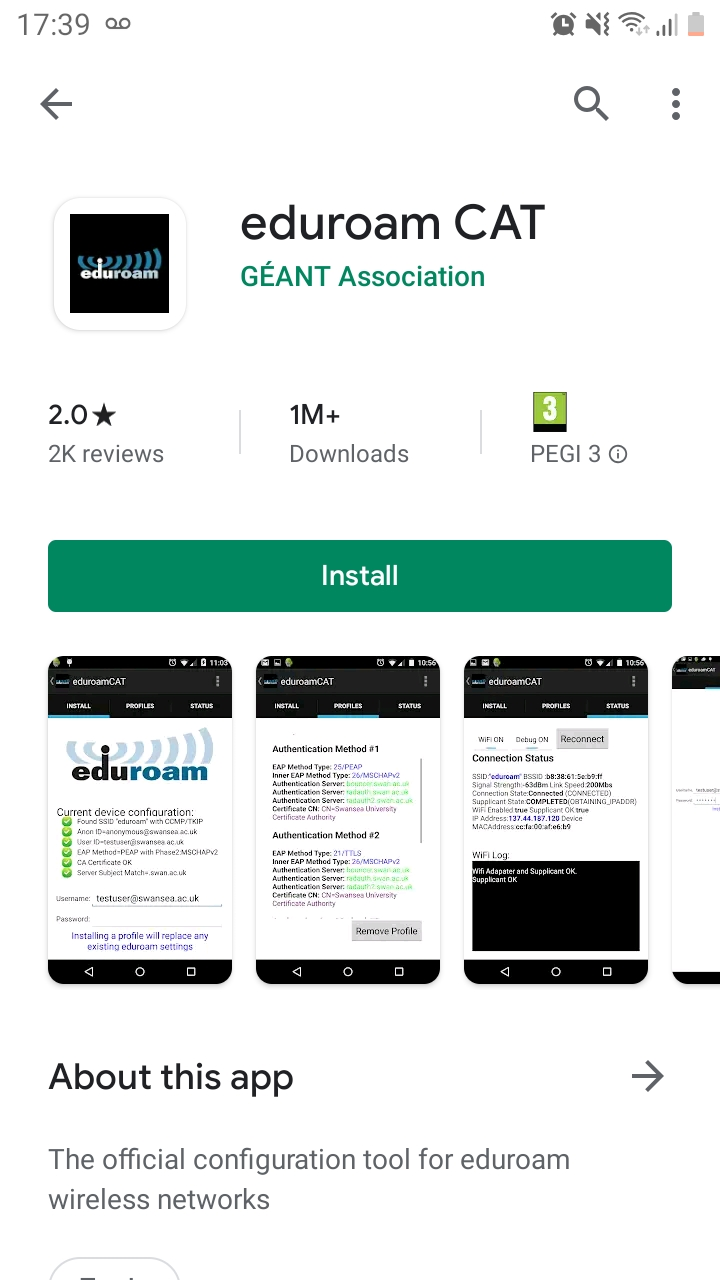
3. Select City, University from the Home institution list in the CATapp
4. Download
5. Install the program
6. Enter your City, University email address (referred to as 'Username') and your normal City, University password as part of the installation.
7. You are now connected to Eduroam
MacOS
Note: All versions of MacOS before 10.13 High Sierra are incompatible with eduroam Wifi due to older versions not supporting TLS 1.2. The only solution is upgrading to 10.13 or higher.
1. Make sure that you have an internet connection such as 4G, city-guest or a home WiFi connection.
2. Access the website https://cat.eduroam.org and click on the Installer button.
3. Select City, University from the Home institution list
4. Download
5. Install the program
6. Enter your City, University email address (referred to as 'Username') and your normal City, University password as part of the installation
7. You are now connected to Eduroam
Windows
1. Make sure that you have an internet connection such as 4G, city-guest or a home WiFi connection.
2. Access the website https://cat.eduroam.org and click on the Installer button.
3. Select City, University from the Home institution list
4. Download
5. Install the program
6. Enter your City, University email address (referred to as 'Username') and your normal City, University password as part of the installation.
7. You are now connected to Eduroam
If the eduroam installer does not work for you.
You can configure your laptop/mobile device as shown in the guides listed below, although please be aware this method is less secure than the installer:
Mobile devices
Laptops
If you are not able to connect using the installer or guides listed, please contact the IT Service Desk on 020 7040 8181
Frequently asked Questions about IT Services
What should I do if I can’t complete registration?
If you are unable to login then please contact the IT Service Desk.
What should I do if I’ve forgotten my password?
You must register for ‘Self-Service Password Reset’
Setting up your self-service account is a one-time process, and allows you to access Office 365 and reset your password (should you forget it) without contacting the IT Service Desk.
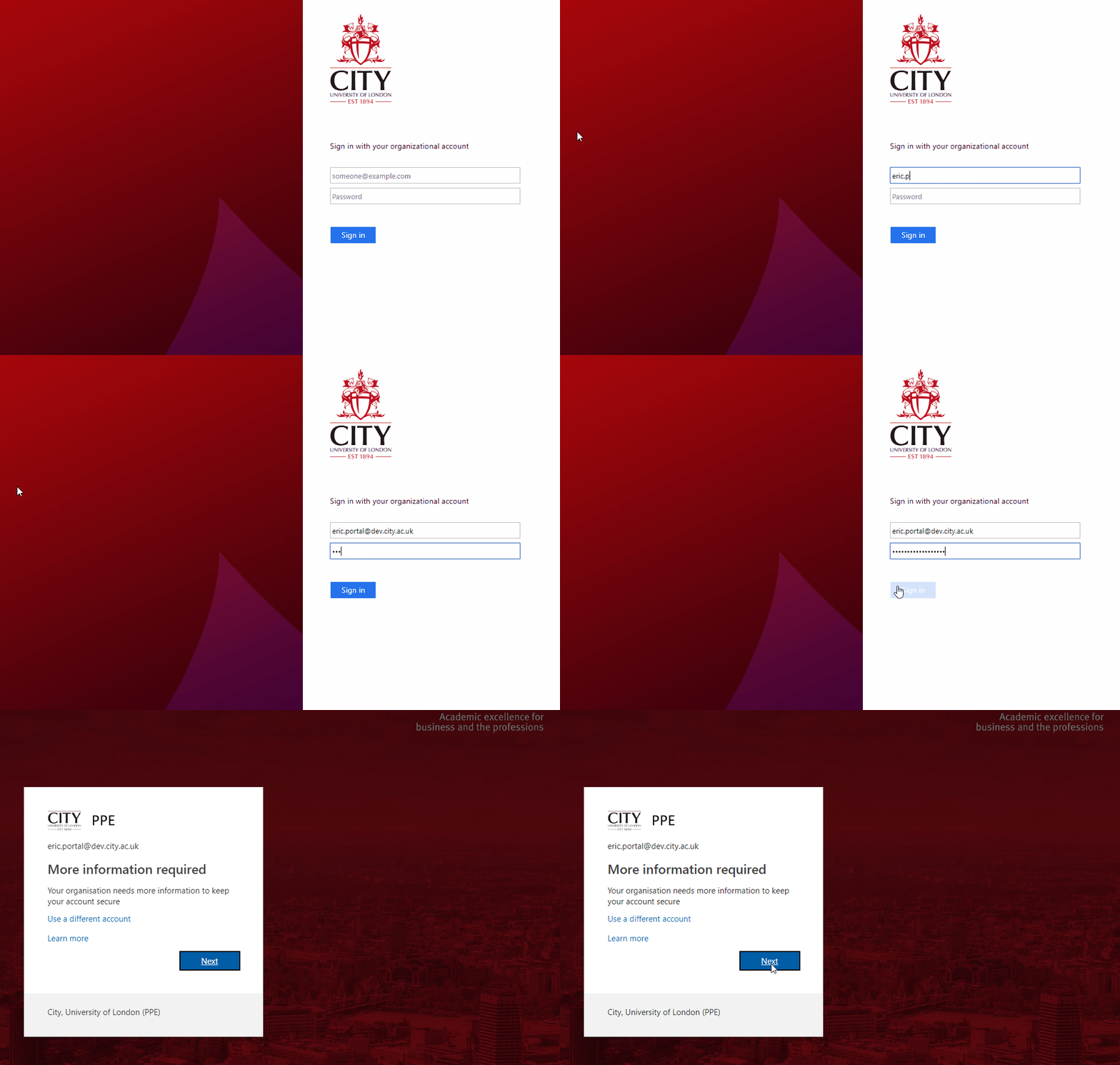
- Visit pwdreg.city.ac.uk
- Login with your username (e.g abcd123) and password.
- Setup additional security verification methods of your choice, either:
- A mobile phone number – you will be sent a text should you reset your password.
- Security questions – you will be asked to answer three security questions should you reset your password
Please note: when you register, ensure the information you provide cannot be seen by others.
When are first prompted, you will see a message asking for more information, select 'Next'. If you are unable to complete the sign-up process at this time select 'Skip setup', to postpone for up to two weeks.
To continue setting up your security information you can choose between the following options:
Phone Number
If you wish to provide a phone number as part of your security information choose the UK (+44) country code then enter your mobile number leaving out the leading 0.
- A code will then be sent to your mobile. Enter this code and click ‘Next’
- Click ‘Done’
- You have now registered your information for password self-service.

Security Questions
If you do not wish to provide your mobile number as part of the security verification process click ‘I want to set up a different method’ link at the bottom left to use an alternative method.
- Choose five different questions from the drop-down selection and enter your answers
- Click ‘Save’
- Click ‘Done’
- You have now registered your information for password self-service.
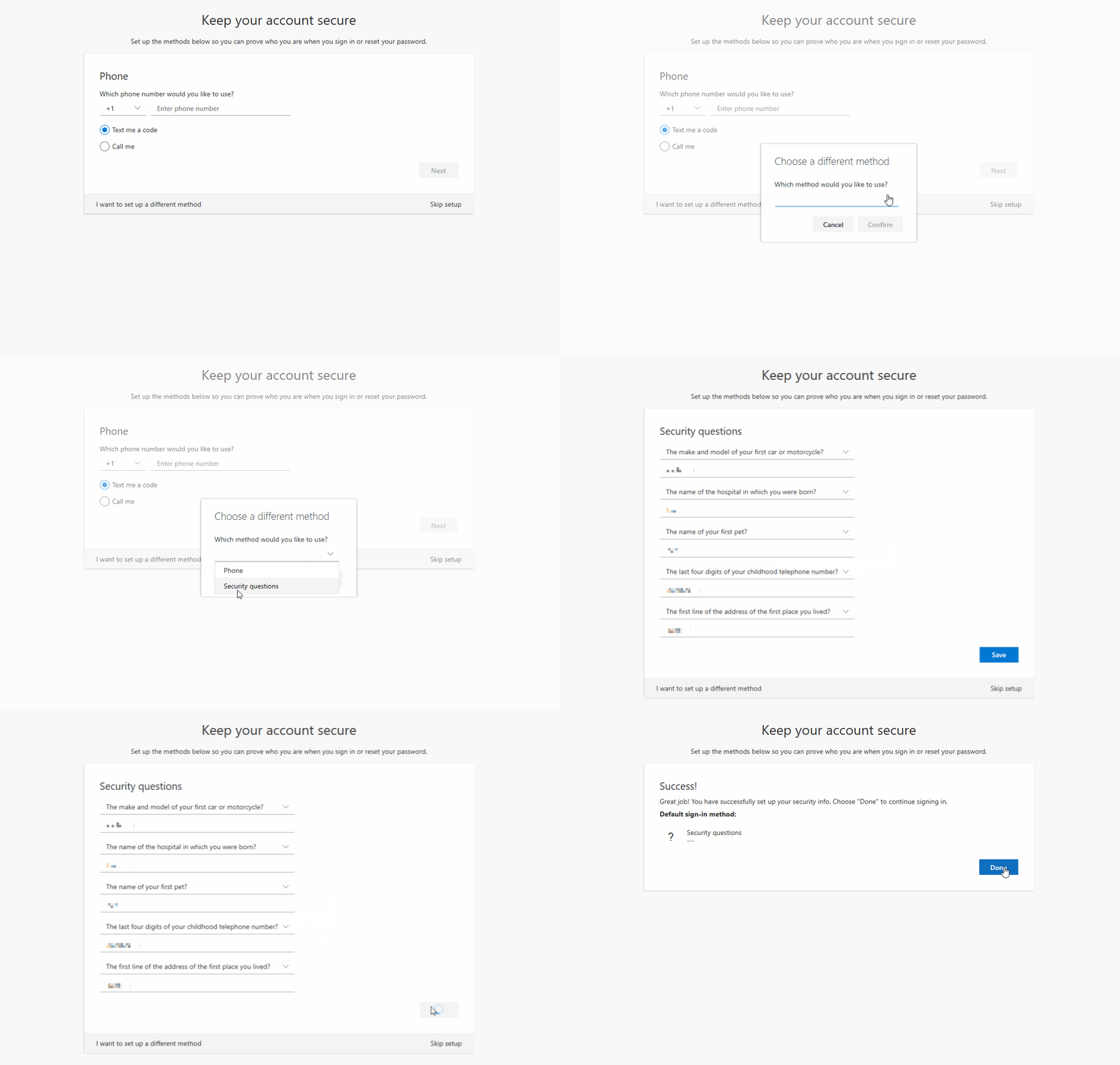
Once these stages are complete you will have successfully set up your City, University of London IT account.
How can I change my password?
Information on how to change your student password can be found at https://studenthub.city.ac.uk/information-technology/faq.
What happens to my email after I graduate?
Your City St George's account is deactivated once you complete your course (this includes access to your City St George's email, Moodle and the Library services). You will be given notice of this change by email and you will have 40 days to export any files and data before your account is closed and deleted, following this you will have a further 235-days before your email account is closed and deleted.
There is no account recovery following deletion, and the closure periods cannot be extended. Once erased there is no data to retrieve.
To continue using your email account, you are required to be compliant with City St George's IT policies. This includes the password policy which requires you to update your password every 12 months to stop your account from being deactivated and deleted.
Apart from the Library, where else are there open access PCs?
Information on the location of computing labs, opening hours and 24-hour lab access can be found on the computer rooms page.
Do you fix personal computers?
We do not fix personal computers. However, we will provide guidance on repair shops.
Contact us
IT Service Desk
Information Technology
+44 (0)20 7040 8181
Merging City and St George’s Resources
As we bring together resources for City (Clerkenwell) and St George’s (Tooting) students, some content may be specific to one campus and not the other. For the most relevant information, try using specific keywords or exploring content related to your department. If you need help, our support teams are available to guide you.
Clerkenwell students can contact campus.news@citystgeorges.ac.uk
Tooting students can contact studentlifecentre@sgul.ac.uk.